How to keep your voice recordings private: on-device vs cloud
October 11, 2026 · 6 min read
A meeting recording can hold salaries, client names, health details or a half-finished plan. A lecture recording holds your teacher’s voice and your classmates’ questions. Once that audio is transcribed and summarized, the text is even easier to read and copy than the sound.
Privacy here is mostly about one question: how many copies of this recording exist, and who can open them? This guide explains the difference between on-device and cloud processing without picking sides, then gives you a checklist that works whichever app you use.
Where a recording can end up
Follow a recording from the moment you press stop and you will usually find more copies than you expected:
- The audio file on your phone, inside the recording app.
- A copy on a provider’s servers, if the app uploads it to transcribe or summarize.
- The transcript and summary, which may be stored separately from the audio.
- Your phone’s backup, if app data is included in it.
- Every export you made: a Word file in an email, a text pasted into a chat, a file sent by AirDrop.
Each copy is a place where someone else could read it, and a place you have to remember when you want it deleted.
On-device vs cloud processing, fairly
Cloud processing sends the audio to a server, where powerful models transcribe and summarize it. It can be fast and accurate, and it lets the same recording appear on all your devices. The trade-off is that a copy now lives outside your control, governed by the provider’s policy.
On-device processing runs speech recognition and summaries on the phone’s own chip. The audio does not need to leave, and it works without a connection. The trade-offs: it depends on your phone’s capabilities, and nothing syncs to another device unless you move it yourself.
Neither is automatically safe or unsafe. If you use a cloud service, read its policy for these points:
- Retention: how long audio and transcripts are kept, and whether deleting in the app deletes them on the server.
- Training: whether your recordings may be used to improve their models, and whether you can opt out.
- Access: whether staff or contractors can listen to or read your content, and when.
- Location: which country the data is stored in — this matters for workplace and legal rules.
- Sharing: which other companies process the data on their behalf.
A privacy checklist for recordings on iPhone
These steps help with any recording app, and most take a minute.
- 1Use a strong passcode and Face ID. Everything else depends on the phone itself being locked.
- 2Hide notification previews on the Lock Screen (Settings → Notifications → Show Previews → When Unlocked), so titles of recordings and messages about them are not readable on a locked phone.
- 3Lock the app itself. Recent iOS versions let you require Face ID to open a specific app (touch and hold its icon); many recording apps also have their own lock.
- 4Check your backups. An iCloud backup of your iPhone can include app data. With Advanced Data Protection turned on, most iCloud data, including backups, is end-to-end encrypted; without it, it is encrypted but Apple holds the keys. Decide which fits how sensitive your recordings are.
- 5Delete what you no longer need. Once a recording is transcribed and checked, consider keeping only the text, or deleting both when the project ends.
- 6Share on purpose. An export is a new copy you control only until you send it. Prefer sending to a named person over a group chat, and check the AirDrop recipient before you tap.
- 7Tell people you are recording. Consent is a legal question in many places, and it is also the most basic part of respecting others’ privacy.
How Hearnote keeps recordings on the phone
Hearnote was built so that the private option is the default one:
- Transcription uses Apple’s on-device speech recognizer; summaries and Ask Hearnote use Apple Intelligence on the device. Hearnote has no server that receives your audio, transcripts or notes.
- No account: no email, no password, nothing to sign up for.
- Recordings live in the app’s private storage and leave the phone only when you export or share them yourself.
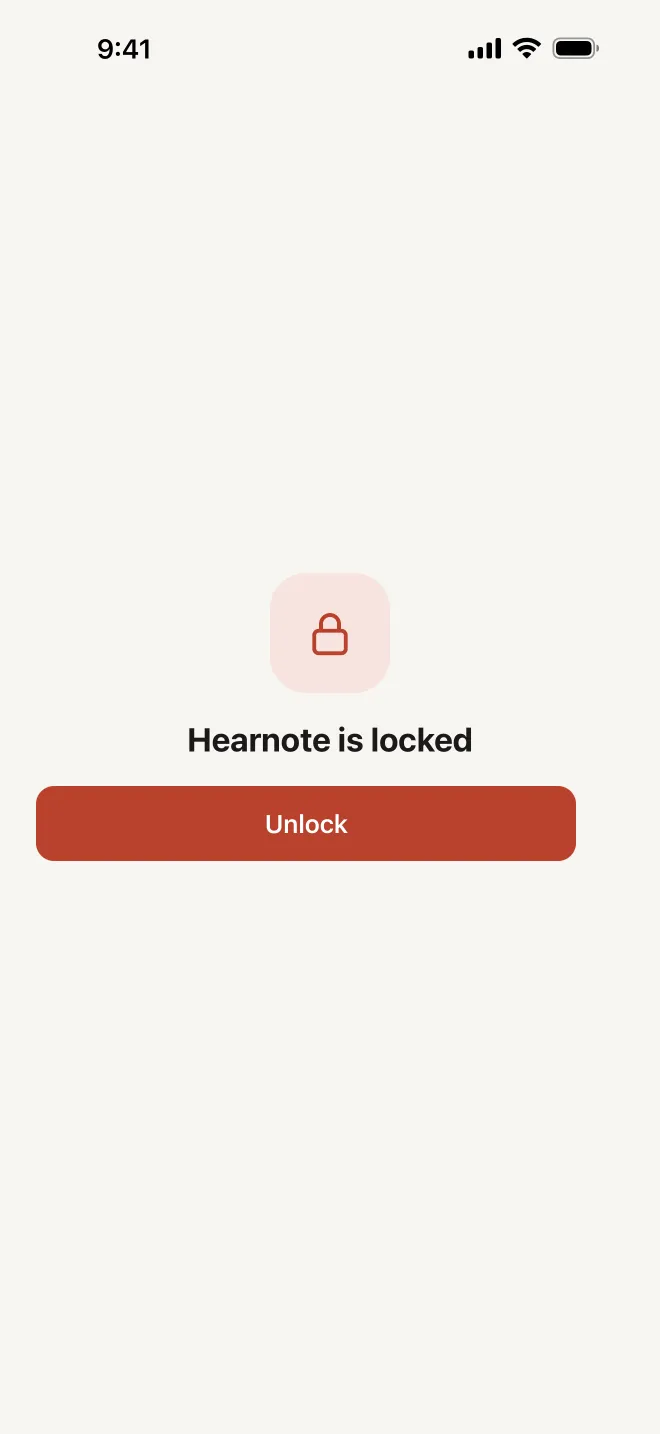
- Face ID lock for the whole app or for single recordings with Hearnote Pro.
- “Remove audio, keep text” lets you delete the sound and keep only the transcript and notes.
- The current version has no analytics, no crash reporting and no ads. Purchases are handled entirely by Apple.
The only thing downloaded is Apple’s speech model for a language, once. The full details are in the privacy policy on this site.
Sensitive meetings: a few extra habits
For HR conversations, medical appointments, legal advice or anything under a confidentiality agreement:
- Check your organization’s rules first. Some workplaces ban recording entirely, or allow only approved tools.
- Give recordings neutral titles. “Weekly sync” reveals less than a person’s name and a topic.
- Export only the summary when that is all others need, not the full audio.
- Write down where each copy went, so you can delete them all later.
Frequently asked questions
- Is on-device transcription less accurate than the cloud?
- Not necessarily; it depends on the language, the audio and the models involved. What on-device processing guarantees is where the audio is processed, not a particular accuracy. Try both on a sample of your own recordings.
- Does Hearnote upload anything?
- No recordings, transcripts, summaries or questions. Hearnote has no account and no server that receives them. The phone downloads Apple’s speech model for a language once, and feedback is sent only if you write it and tap Send.
- Are my recordings in my iCloud backup?
- If your iPhone backs up to iCloud, app data can be part of that backup. Turning on Advanced Data Protection end-to-end encrypts most iCloud data, including backups. Check Settings → your name → iCloud to see what is backed up.
- What is the safest way to share a transcript?
- Export only what the other person needs — often the summary, not the audio — and send it directly to them rather than to a group or a public link. Remember that once sent, that copy is outside your control.