How to transcribe Vietnamese audio to text offline on iPhone
October 11, 2026 · 6 min read
Maybe you interview Vietnamese speakers for research, work with a team in Hà Nội or Sài Gòn, or want a written record of a long call with your grandparents. Typing it out by hand takes many times longer than the audio itself, and many transcription services expect you to upload the file to a server first — not ideal for a private conversation, and not possible on a train or in a lecture hall with no Wi‑Fi.
This guide covers what an iPhone can already do with Vietnamese speech, how to record audio that transcribes well, and how to get a full, searchable transcript entirely on the device. Everything here works for English too.
What your iPhone can already do
Before installing anything, check the tools you have. They are good for short pieces of text, less so for long recordings.
- Keyboard dictation. Add the Vietnamese keyboard in Settings → General → Keyboard → Keyboards, then tap the microphone key and speak. It handles Vietnamese tones and punctuation reasonably well for messages and notes. On newer iPhones, dictation for some languages runs on the device; whether Vietnamese works offline depends on your model and iOS version, so try it once in Airplane Mode before you rely on it.
- Transcripts in built-in apps. Recent iOS versions can show transcripts for some recordings and in some apps, but language support is limited and changes between releases. Check whether Vietnamese is listed on your phone rather than assuming it is.
- Live Captions. An accessibility feature that captions audio playing on the phone. Its availability depends on language and region, so it may not be offered for Vietnamese where you are.
The common limit: dictation transcribes what you say into the microphone right now. It cannot take an existing hour-long file and give you every line with a timestamp. For that you need an app that transcribes recordings.
Record audio that transcribes well
No speech recognizer can fix a recording where the words are not clearly audible. A few habits make more difference than any setting:
- Put the phone close to whoever talks most, ideally within an arm’s length, on a soft surface so table knocks are not picked up.
- Avoid fans, air conditioners and cafés with music when you can choose. Background noise hurts accuracy more than accent does.
- Ask people not to talk over each other. Overlapping speech is the hardest thing to transcribe in any language.
- Say names, places and technical terms clearly once at the start. You will still need to check them, but it helps.
- For calls, use speakerphone in a quiet room, and tell everyone you are recording.
Transcribe Vietnamese offline with Hearnote, step by step
Hearnote is an iPhone recorder that transcribes with Apple’s on-device speech recognizer (iOS 26). Vietnamese and the English variants your iPhone lists are supported equally. The audio is processed on the phone and never uploaded.
- 1While you still have a connection, open Hearnote and choose Vietnamese as the default transcription language. The first time you use a language, your iPhone downloads its speech model from Apple, with progress shown. This happens once; after that no connection is needed.
- 2Tap the red button to record. You can lock the screen or switch apps and it keeps recording; a phone call pauses it until you resume.
- 3Or import an existing file instead — a voice recorder file, a Voice Memos recording or audio saved from a video call — and open it in Hearnote.
- 4Stop the recording. Hearnote transcribes it on the device and saves progress as it goes, so a long recording that gets interrupted picks up where it left off.
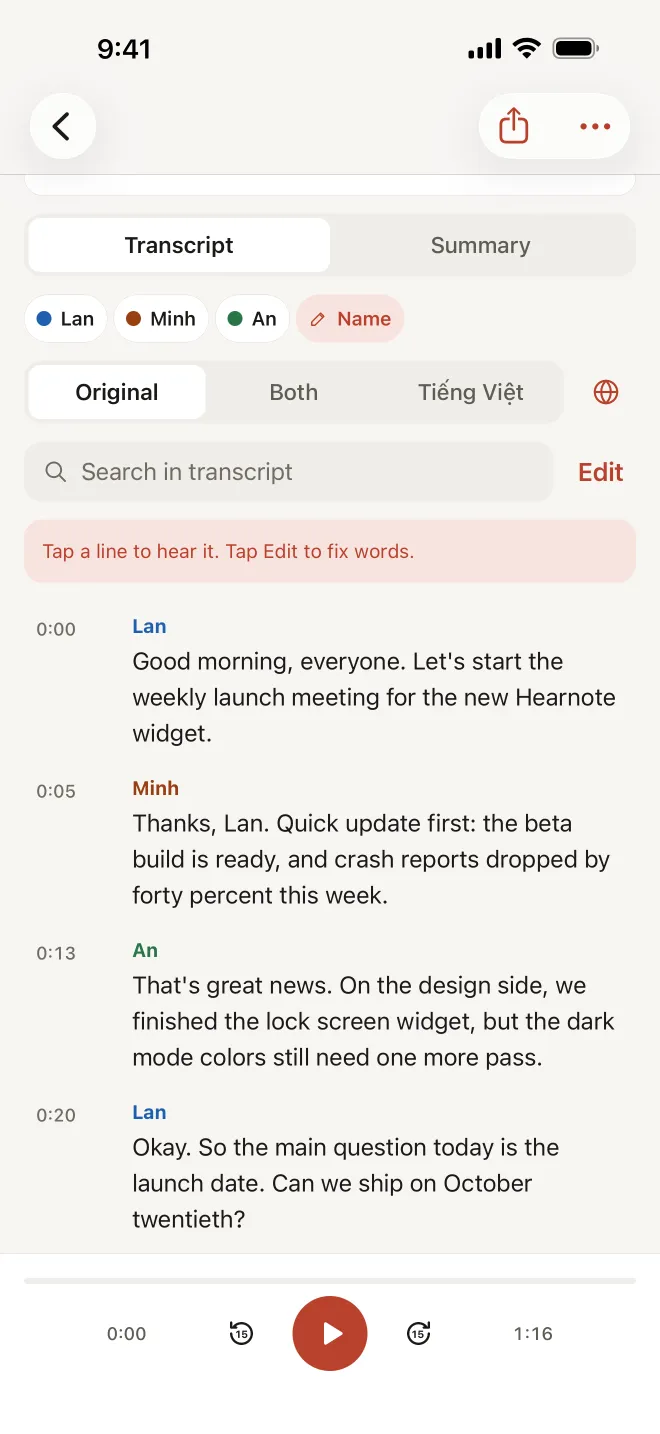
- 5Read the transcript. Every line has a timestamp; tap a line to hear that moment, and tap Edit to fix a word in place.
- 6If someone spoke English for most of the recording, re-transcribe it in English from the language chip. You can switch back at any time.
- 7Export the text as TXT or Markdown, or as a Word document or .srt subtitles with Hearnote Pro.
Check names, numbers and tones
Speech recognition is good, not perfect. How accurate a transcript is depends on the audio, the speakers’ accents and how much people talk over each other, so plan a quick review before you quote anything.
- Names of people, companies and products are the most common mistakes. Hearnote Pro has custom vocabulary: add the names and jargon you use often so they are recognized more reliably.
- Numbers, dates and amounts deserve a second listen. Tap the line to play it and fix it in place.
- Vietnamese words that differ only by tone can be misheard in noisy audio. If a sentence reads oddly, listen to it rather than guess.
- Use the search field to jump to every place a term appears and correct it consistently.
Understand it in the other language
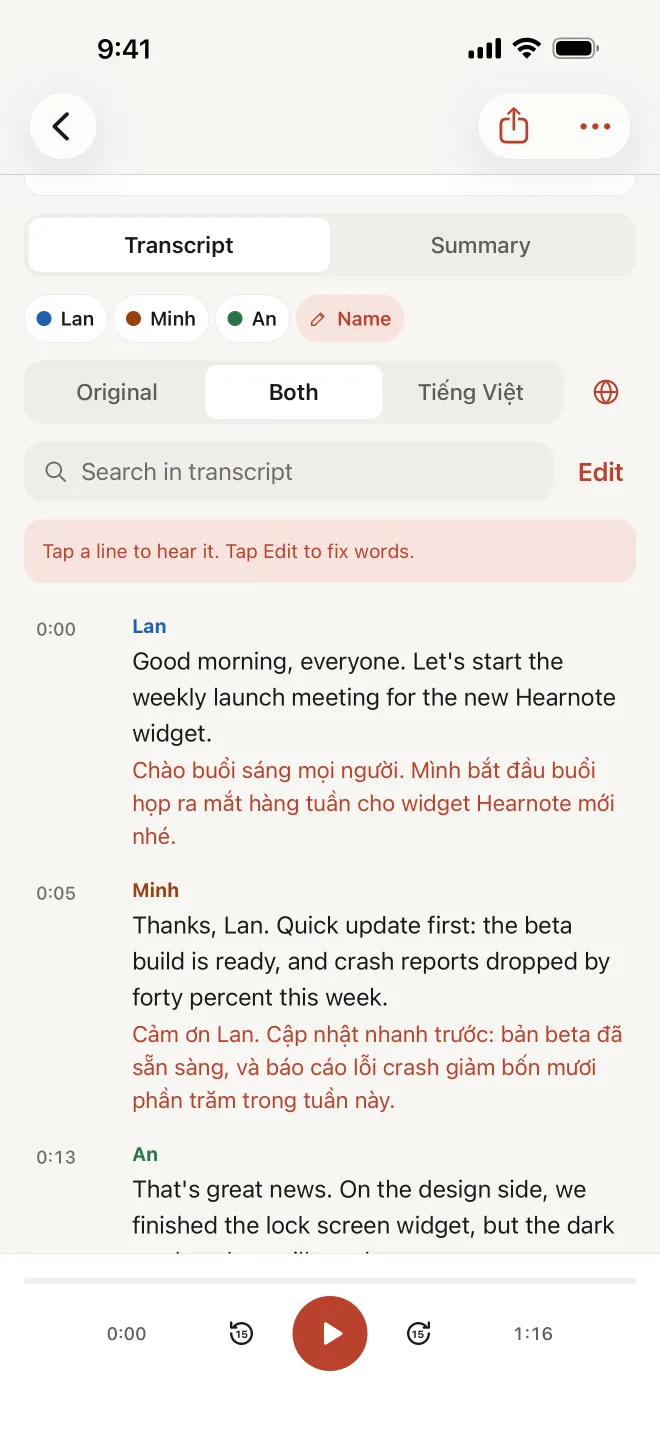
If you do not read Vietnamese well — or your Vietnamese colleagues prefer English — Hearnote Pro can translate the transcript between Vietnamese and English on the device. The Both view shows each original line with its translation underneath, so you can still see what was actually said.
Treat machine translation as a way to follow the conversation, not as a certified translation. For anything that matters, check the original line with someone who speaks the language.
What is free and what needs Pro
Recording is unlimited. The free version transcribes 3 recordings and up to 60 minutes a week, and exports TXT and Markdown. Hearnote Pro removes the transcription limit and adds custom vocabulary, translation, speaker labels and Word and .srt export.
Summaries and Ask Hearnote need Apple Intelligence (iPhone 15 Pro or later, with Apple Intelligence on and supporting the recording’s language). Transcription itself works on every iPhone that runs iOS 26, so you always get the full text.
Frequently asked questions
- Does it really work without internet?
- Yes, after one download. The first time you use Vietnamese (or English), the iPhone downloads that language’s speech model from Apple. From then on, recording and transcription run entirely on the device, in Airplane Mode or anywhere without a signal.
- How accurate is Vietnamese transcription?
- It depends mostly on the recording: clear audio with one person speaking at a time comes out well, while noise and crosstalk cause mistakes. Always review names, numbers and anything you plan to quote — tap a line to hear it.
- Can I transcribe a recording I already have?
- Yes. Import an audio file — from a voice recorder, Voice Memos or a video call — into Hearnote and it is transcribed on the device like a new recording.
- What if people mix Vietnamese and English?
- A recording is transcribed in one language at a time. Choose the language spoken most; English words inside Vietnamese sentences may come out spelled phonetically. If a recording is mainly in the other language, re-transcribe it in that language.
- Does it handle northern, central and southern accents?
- Apple’s recognizer is trained on a wide range of speakers, but results vary with accent, speed and audio quality. Strong regional accents or dialect words may need more corrections, so test it on a short sample of the people you record.