How to search inside your voice recordings (and find any sentence again)
October 11, 2026 · 6 min read
You remember someone saying the budget would move to next quarter. You even remember roughly which week. But you have forty recordings called “New Recording 12” and nothing to search, so you either replay audio for twenty minutes or give up and ask again.
Finding something in a recording comes down to two things: knowing which recording, and knowing where inside it. This guide covers habits that solve both with the tools on your iPhone, and then how Hearnote turns every recording into searchable text.
Why recordings are hard to search
A search box looks for text. A voice recording, on its own, has none: just a file name, a date and a length. That’s why searching your phone for “budget” finds the email and the note but not the meeting where the decision was actually made.
So every reliable method does one of two things: it puts useful words around the recording (a name, tags, a few notes), or it turns the speech itself into words (a transcript). The first is quick and works everywhere. The second is what lets you find a sentence nobody thought to write down.
Find the right recording: names, folders and favourites
Most of the time you don’t need to search the audio, just to find the right file quickly. Ten seconds after each recording saves a lot of time later.
- Rename every recording right after it ends: what, with whom, and a keyword (“Client call — Northwind pricing”, “Biology 201 — cell respiration”). In Voice Memos, tap the title to edit it.
- Use folders for the things you return to: one per course, client or project. Voice Memos lets you create folders and move recordings into them.
- Favourite the few recordings that matter most so they’re one tap away.
- Add a line of context somewhere searchable. A short note in the Notes app with the recording’s name and the three decisions made is something Spotlight can find later.
Dates help too. If you know a decision was made “the week before the launch”, a well-named list sorted by date gets you there quickly.
Find the right moment: get the words into text
To find a sentence inside a recording, you need a transcript. Here is a workable routine with what your iPhone already has:
- 1Check what your iOS version offers. On recent versions, Voice Memos and the Notes app can show a transcript for some languages. If yours does, open the transcript and use its search or Find in Note.
- 2If there is no transcript, write a short timeline while you listen or right after: “05:30 — budget moves to Q3”, “18:10 — Minh owns testing”. Keep it next to the recording.
- 3Store that timeline as text where Spotlight can see it, such as a note named after the recording. Searching your iPhone for “budget” now leads you to the note, and the note tells you the minute.
- 4Jump to the minute and listen to a few seconds around it to check the exact wording before you quote anyone.
- 5For recordings you’ll search often (a course, a long project), keep doing this every time. A timeline written the same day takes minutes; reconstructing one a month later takes hours.
Search well, even with a transcript
A transcript makes search possible, but speech is messy, and people rarely use the exact word you remember. A few habits help:
- Search for the rare word, not the common one. “Northwind” or “retention” narrows things down far more than “meeting” or “next week”.
- Try synonyms and the other language. If the meeting mixed Vietnamese and English, the word you remember may have been said in either.
- Search for names. People’s names and product names are usually transcribed consistently and make good anchors.
- Expect small transcription mistakes on names and jargon. If a search finds nothing, try a shorter part of the word.
- Always listen before you quote. The transcript tells you where; the audio confirms what was really said.
How Hearnote makes every recording searchable
Hearnote turns recordings into text on the iPhone itself and then makes that text easy to search. Nothing is uploaded and there’s no account.
- Transcripts in Vietnamese and English, made on the device (iOS 26; the language model downloads from Apple once). Every line has a timestamp; tap it to hear that moment.
- Search inside a recording: open any recording and search its transcript, on the free tier too.
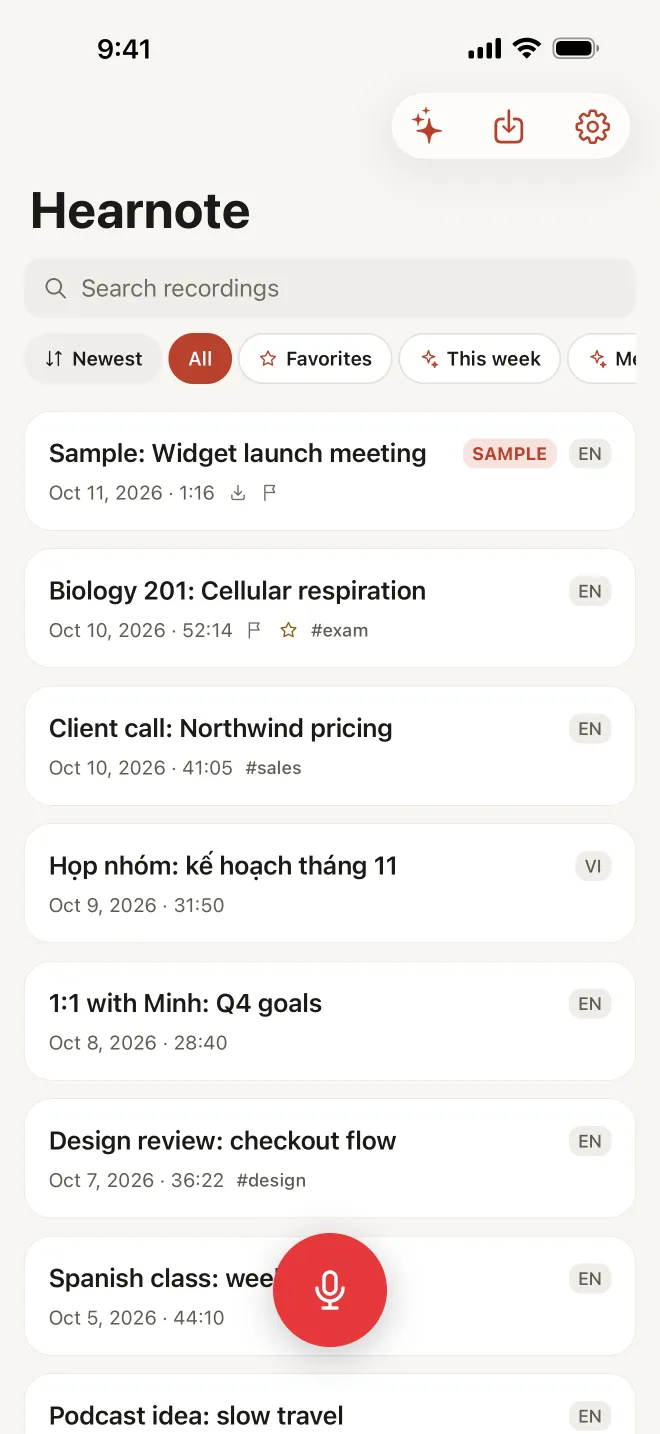
- Search across recordings: type a word in the library and Hearnote shows which recording said it and at what minute. On the free tier the library search matches recording titles; Hearnote Pro searches inside every transcript.
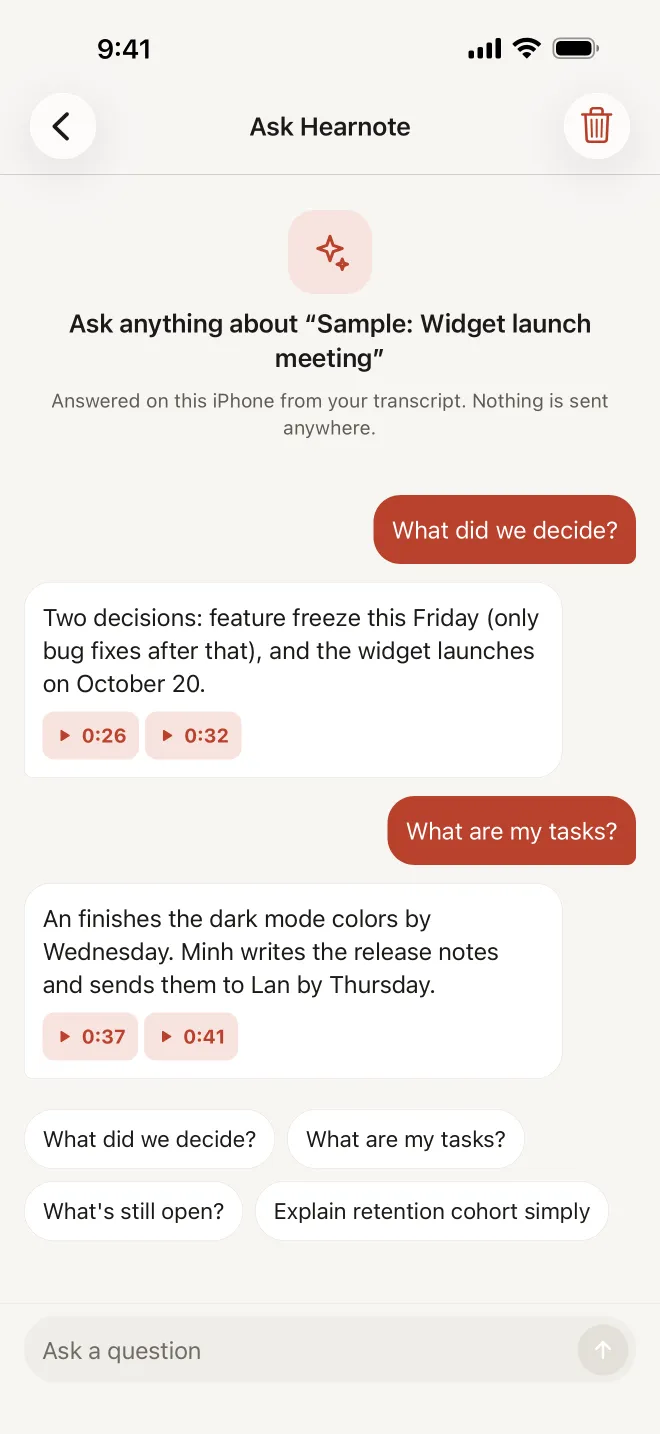
- Ask Hearnote (Hearnote Pro): ask one recording or all of them a question, such as “What did we promise the client?”, and the answer cites the timestamps it came from. Tap one to hear the sentence. Written answers need Apple Intelligence (iPhone 15 Pro or later); without it, Ask still shows the best-matching moments.
- Organising that stays free: folders, tags, favourites and sorting. Smart filters such as this week, meetings, lectures and recordings with action items come with Hearnote Pro.
- Custom vocabulary (Hearnote Pro) helps names and jargon come out right, which makes them easier to find later.
The sample recording in the app has every Pro feature unlocked, so you can try searching and asking before you decide anything.
Ask instead of search
Search is great when you remember a word. When you only remember the idea, a question works better: “What did we decide about the launch date?” or “What are my tasks?” Ask Hearnote reads the transcripts on your iPhone, writes a short answer, and puts the timestamps under it so you can check every claim against the audio.
Treat answers like a colleague’s summary: a fast way to the right moment, not a replacement for listening when the exact words matter.
Frequently asked questions
- Can I search the audio of a recording directly?
- Not as sound. Search needs text, so the recording has to be transcribed first, by a built-in feature where your iOS version offers one, by an app, or by hand as a timeline of key moments.
- Does Hearnote search work offline?
- Yes. Transcription, search and Ask all run on the iPhone, so they work without a connection once the language model has been downloaded from Apple.
- What does Hearnote search on the free tier?
- On the free tier you can search inside any single recording’s transcript, and the library search matches recording titles. Hearnote Pro searches inside every transcript at once and adds Ask Hearnote.
- Can it find something said in Vietnamese if I search in English?
- Search matches the words in the transcript, so search in the language that was spoken. If you only remember the idea, not the exact words, asking Hearnote a question is often the faster way to the right moment.