How to turn meeting action items into reminders automatically
October 11, 2026 · 6 min read
Most meetings end with a list of things to do. A week later, half of them have quietly disappeared: nobody wrote down who said they would do it, “next week” never became a date, and the notes sit in a notebook nobody opens. The problem is rarely the meeting itself — it is the gap between saying “I’ll do that” and having it on a list you actually check.
This guide shows how to close that gap with what is already on your iPhone, then how Hearnote can do the capturing part for you.
Why action items get lost
Action items usually fail in one of three ways:
- No owner. “We should update the pricing page” is a wish, not a task. If nobody’s name is on it, nobody does it.
- No date. “Soon” and “next week” slide. A task without a due date never shows up when it matters.
- Wrong place. A task written in meeting notes doesn’t remind anyone. It has to land in a list or calendar that someone looks at every day.
Fix those three and most of the problem goes away, with or without any special app.
Capture them in a format that works
During the meeting, write each action item on its own line in the same shape: verb + task — owner — due date. For example:
- Send the revised quote to the client — Linh — Thursday
- Book the room for the workshop — Minh — Oct 20
- Check the contract wording with legal — An — end of next week
Starting with a verb makes the task concrete. If the group can’t agree on an owner or a date, write “owner?” or “date?” and settle it before everyone leaves — that is exactly the gap that loses tasks.
Turn the list into reminders on iPhone
- 1Read the list back in the last two minutes of the meeting. Ask each owner to confirm their item and date out loud.
- 2Open Reminders and add your own items, each with its due date. Or ask Siri: “Remind me to send the revised quote to the client on Thursday.”
- 3For team tasks, use a shared list. On recent versions of iOS you can share a Reminders list with other people and, where supported, assign an item to someone on it.
- 4Block time for bigger tasks. If a task needs two hours of focused work, put a block in Calendar before the due date instead of only a reminder on the day.
- 5Send a short recap the same day: the decisions, then the action items with owner and date. People who weren’t in the meeting see what’s expected of them.
- 6Check the list at the start of the next meeting. Ticking off last week’s items keeps everyone honest without anyone having to chase.
Let Hearnote pick out the action items
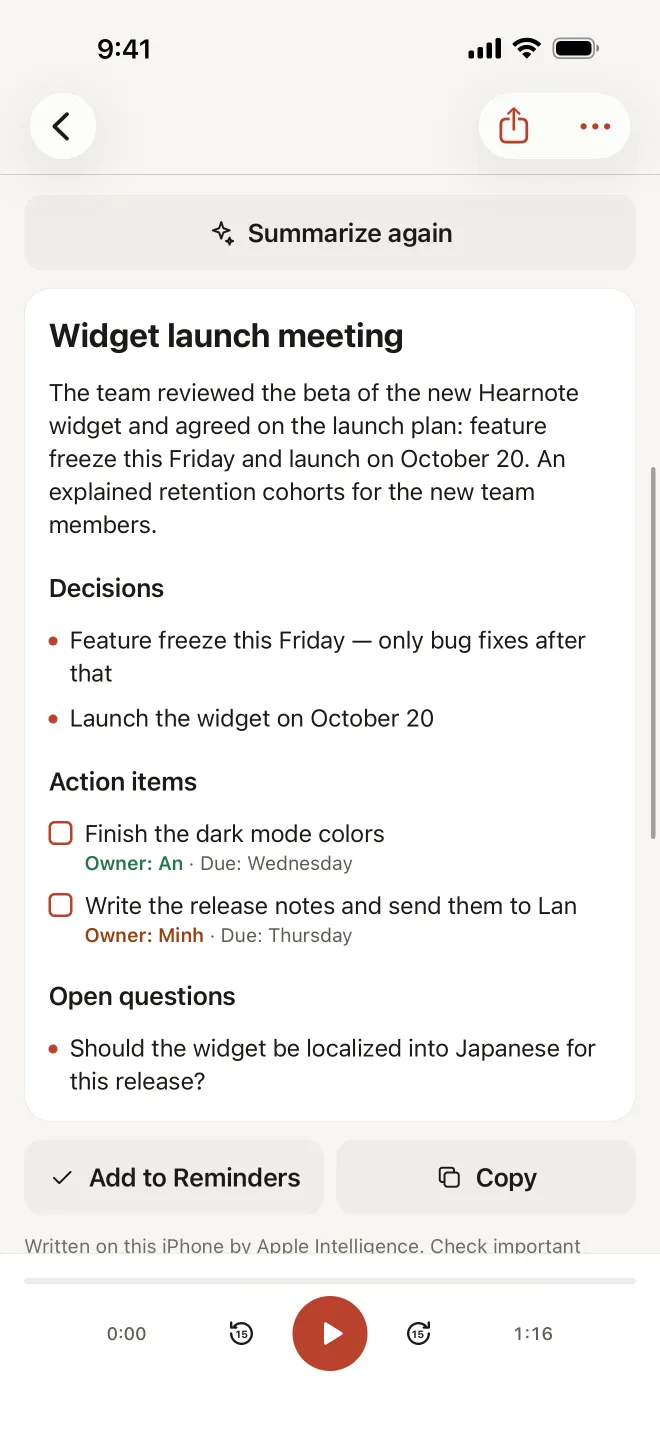
The tiring part of the steps above is listening and writing at the same time. Hearnote records the meeting and transcribes it on your iPhone, so you can listen instead. Afterwards, the Meeting template in Hearnote Pro writes structured notes — a summary, decisions, action items and open questions — with Apple Intelligence on the device. Each action item comes with an owner and a due date when they were said in the meeting.
Summaries need Apple Intelligence: an iPhone 15 Pro or later, with Apple Intelligence turned on. Recording and transcription work on any iPhone with iOS 26. Nothing is uploaded at any point.
Send them to Reminders or Calendar in one tap
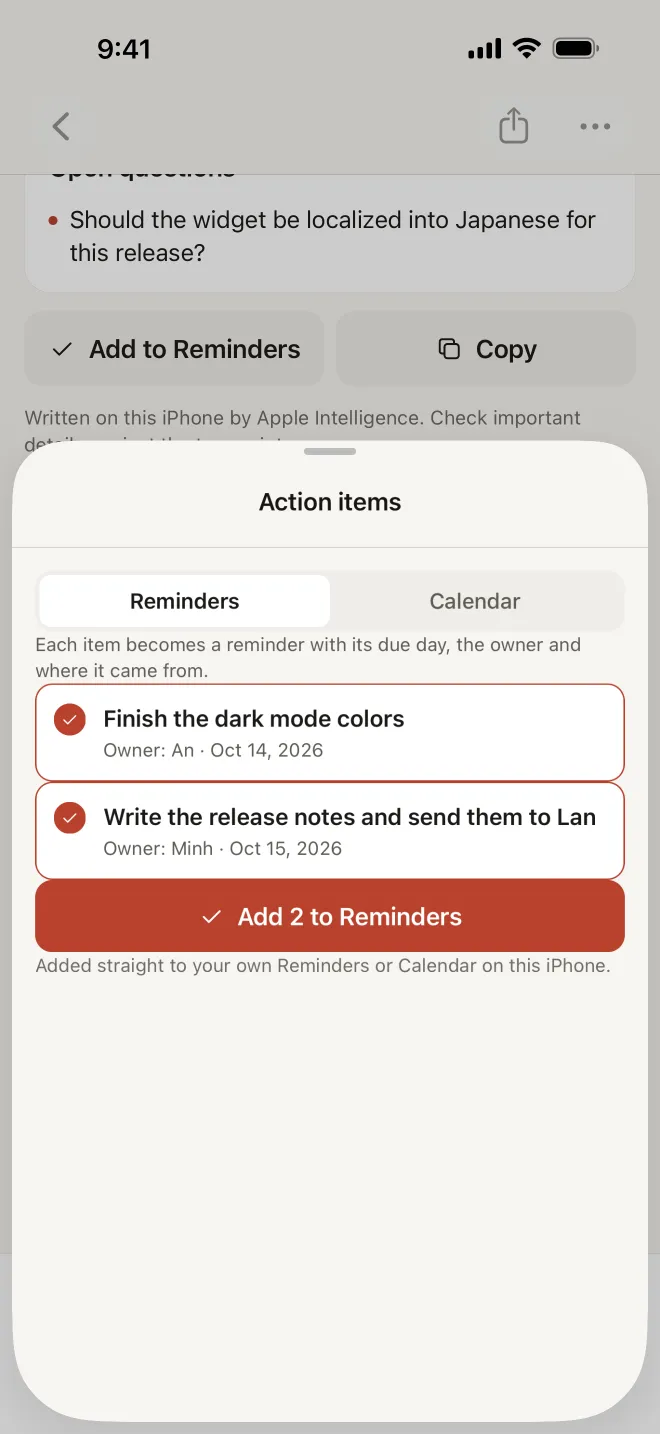
Tap Add to Reminders under the summary and Hearnote opens the action items in a sheet with two tabs, Reminders and Calendar. Tick the items you want and tap “Add 2 to Reminders” (or however many you picked). Each one goes straight into your own Reminders or Calendar on this iPhone, with its due date, the owner and where it came from — so a month later you can still trace a task back to the meeting.
Prefer to send them around? Copy puts the action items on the clipboard, ready to paste into an email or a note. Sending action items to Reminders and Calendar is part of Hearnote Pro, and so is the smart filter for recordings that have action items, which makes it easy to find meetings where something is still open.
Always give the list a quick review
An on-device model is good at spotting “I’ll send it by Friday”, but meetings are messy. A vague “someone should look at this” may come out with the wrong owner or no date, and a joke can occasionally look like a task. Read the list before you add it, untick anything that isn’t real, and fix owners and dates in Reminders if needed. Thirty seconds of review is still far quicker than writing everything from scratch.
On the free tier, Hearnote transcribes 3 recordings and up to 60 minutes a week and writes Quick-note summaries, so you can still record the meeting, read the transcript and copy the tasks across by hand.
Frequently asked questions
- Can the iPhone turn meeting notes into reminders by itself?
- Not directly. You can add reminders by hand or with Siri, and share a Reminders list with your team. Hearnote Pro adds the step in between: it finds the action items in a recorded meeting and adds the ones you choose.
- Do the reminders go to other people’s phones?
- Hearnote adds them to your own Reminders or Calendar on your iPhone. To hand tasks to others, put them in a shared Reminders list or send the copied action items in your recap.
- What if nobody said a due date in the meeting?
- The item comes through without one. Add a date before you save it — a task with no date is the one most likely to be forgotten.
- Is my meeting audio sent anywhere to find the tasks?
- No. Transcription and summaries run on your iPhone, and the reminders are created on the same device.