How to record a meeting on iPhone and get the minutes automatically
October 11, 2026 · 6 min read
Taking minutes while you are also supposed to take part in a meeting is a bad deal: you either listen or you write, and something gets lost either way. Recording the meeting fixes the listening half. The hard part is what comes after — nobody wants to replay a 50-minute recording to find out who agreed to do what.
This guide covers both halves: how to get a clean recording on an iPhone, and how to turn it into minutes people will actually read. The first steps work with the apps already on your phone; the last section shows how Hearnote automates the minutes on the device.
Before the meeting: two minutes that make the recording usable
Most bad meeting recordings are bad for boring reasons: the phone was too far away, a notification interrupted it, or the battery ran out. Check these before anyone starts talking:
- Tell people you are recording, and why (“so I can write the minutes and not miss anything”). It is polite, often legally required, and people rarely mind when they know the reason.
- Charge the phone or plug it in, and check free storage. An hour of speech is small, but a full phone is a common reason a recording stops.
- Turn on Do Not Disturb or a Focus mode so calls and banners do not interrupt you.
- Place the phone in the middle of the table, microphone end towards the people who talk most, on a soft surface such as a notebook so taps and cups on the table do not thump.
- For a call on speakerphone, put the iPhone near the speaker, not next to your laptop fan.
Option 1: record with the apps already on your iPhone
Voice Memos is the simplest choice. Open it, tap the red button, and it records until you stop it, including with the screen locked. On recent iOS versions, Voice Memos and the Notes app can also show a transcript of a recording in supported languages; check whether your iPhone offers it for the language your meeting is in.
What the built-in apps give you is a recording and, at best, raw text. Minutes still need a human: you read or listen through, and write down what was decided and who is doing what. That is fine for a short meeting. For a long one, it helps to mark the moments that matter while they happen — note the time on paper when a decision is made, so you can jump straight there later.
Turn the recording into minutes, step by step
Whatever app you record with, the path from audio to minutes is the same:
- 1Record the whole meeting, from the first agenda item to “thanks, everyone”. Starting late is how the decision from the first five minutes goes missing.
- 2Get a transcript. Use your app’s transcription if it supports your language, or listen back at 1.5× speed and type the key passages.
- 3Skim the transcript once, top to bottom, and highlight only three kinds of sentences: something decided, something someone will do, and something still unresolved.
- 4Write the decisions as short statements: “Launch moves to October 28”, not a retelling of the debate that led there.
- 5Write every action item as task, owner and due date. A task without an owner usually does not get done, and one without a date drifts.
- 6List open questions separately, with who will find the answer.
- 7Send the minutes the same day, while people still remember the meeting and can correct a mistake.
If you want a ready-made structure for step 4–6, use the meeting minutes template in our companion guide.
How Hearnote writes the minutes for you
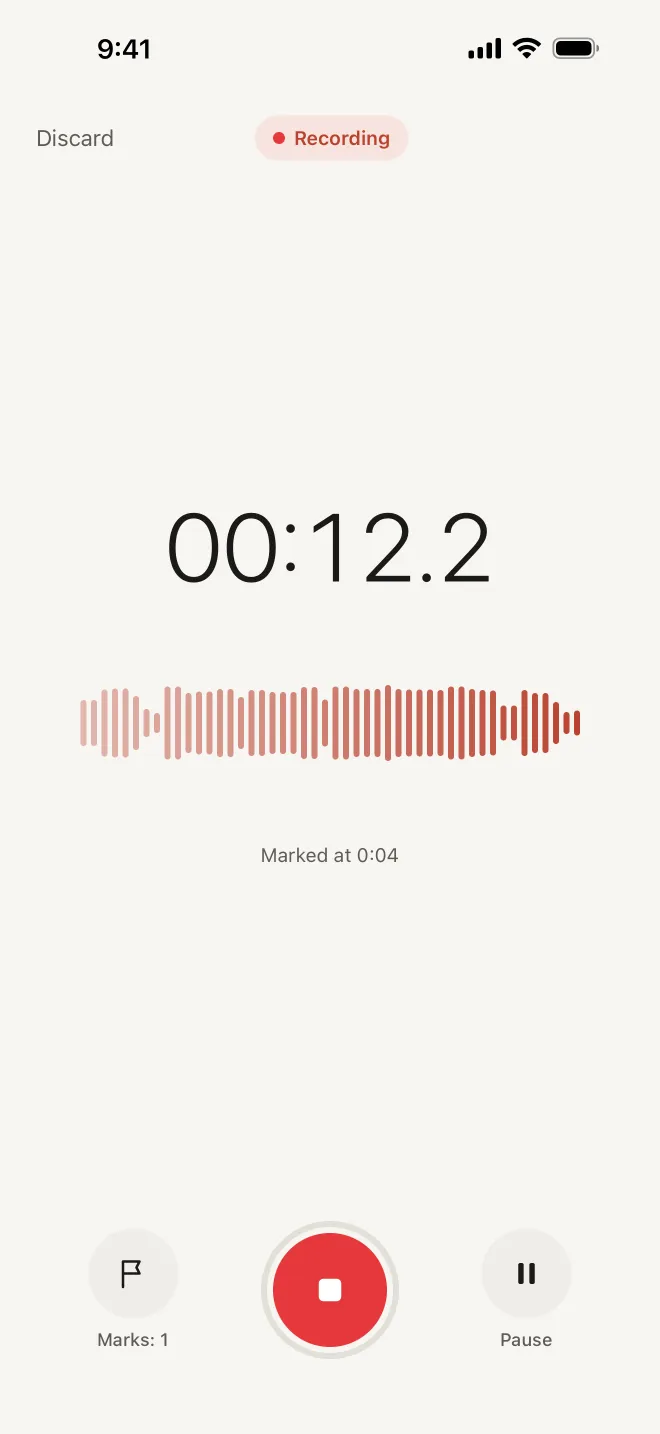
Hearnote is an iPhone recorder built for exactly this job. Tap the red button and it starts recording; it keeps going when the screen locks or you switch to another app, and a phone call pauses it until you resume. While it records, tap Mark whenever something important happens — a decision, a deadline, a name — and the moment is saved with the recording.
When you stop, Hearnote transcribes the audio on the iPhone with Apple’s speech recognizer, in Vietnamese or English. You get a timestamped transcript: tap any line to hear that exact sentence, and fix a misheard word in place.
The summary: decisions, action items and open questions
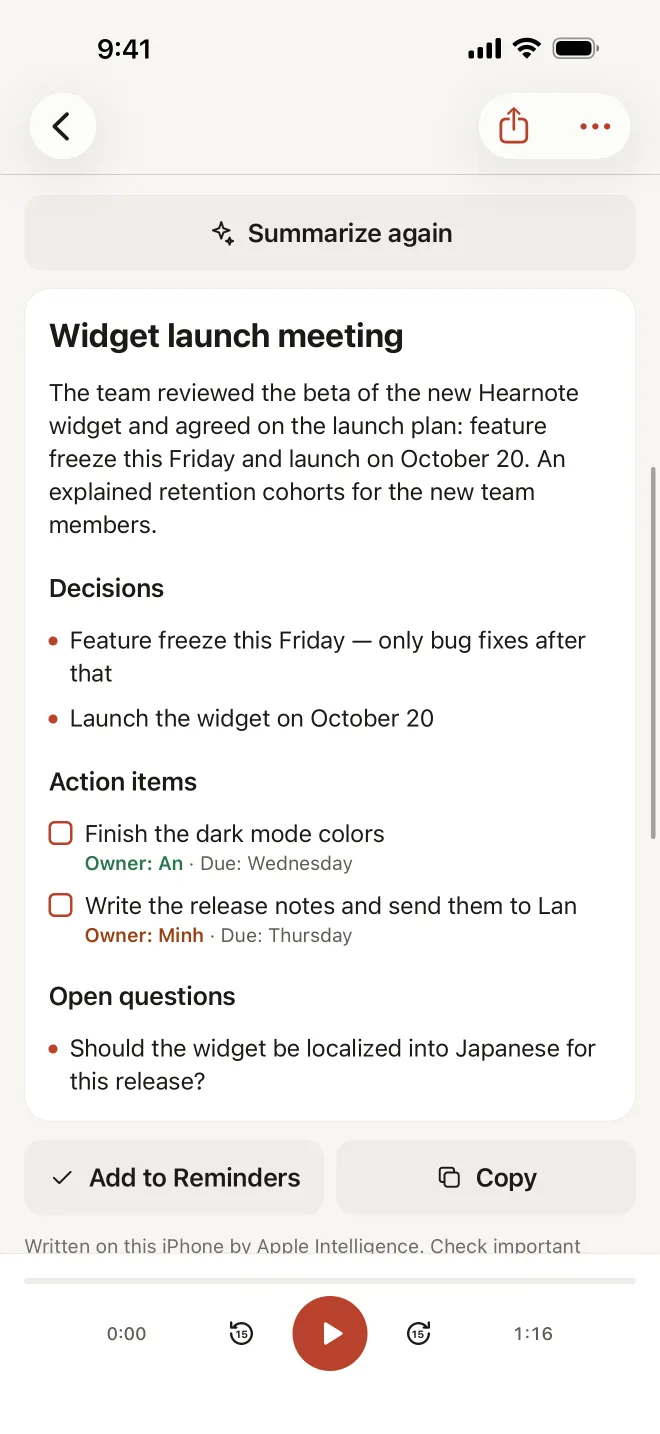
On an iPhone with Apple Intelligence (iPhone 15 Pro or later, with Apple Intelligence turned on and supporting the recording’s language), Hearnote writes notes from the transcript on the device. With the Meeting template you get a title, a short summary, the decisions, action items with an owner and a due date where they were said, and the questions that were left open.
From there you can send the action items to Reminders or Calendar, copy the notes into an email or Notes, or export the recording as Word (.docx), Markdown, plain text or .srt subtitles, with or without the summary. Speaker labels let you rename “Speaker 1” to a real name, and chapters break a long meeting into parts.
The free version includes unlimited recording, transcription for 3 recordings and up to 60 minutes a week, Quick-note summaries and TXT/Markdown export. The Meeting template and the other templates, speaker labels, chapters, sending action items to Reminders or Calendar and Word export are part of Hearnote Pro. The sample recording in the app has every Pro feature unlocked, so you can see a full set of minutes before you decide.
No Apple Intelligence on your iPhone? You still get the full transcript, search and export — everything except the written summary.
Why on-device matters for meeting recordings
Meetings are full of things that should not travel: salaries, client names, plans that are not public yet. Hearnote keeps the audio, the transcript and the notes in the app’s private storage on your iPhone. It has no account and no server that receives them; they leave the phone only when you export or share them yourself.
Because everything runs on the device, it also works in a room with no Wi‑Fi. The only download is the speech model for a language, from Apple, the first time you use it.
Frequently asked questions
- Can an iPhone record a meeting with the screen locked?
- Yes. Voice Memos keeps recording when you lock the screen, and so does Hearnote, which also keeps going when you switch apps. iOS shows the microphone indicator the whole time so everyone can see a recording is running.
- Do I need the internet to get the minutes?
- Not with Hearnote. Transcription and summaries run on the iPhone. The first time you use a language, the iPhone downloads its speech model from Apple; after that no connection is needed.
- Which iPhone do I need for automatic minutes?
- Recording and transcription in Hearnote work on iPhones running iOS 26. The written summary needs Apple Intelligence: iPhone 15 Pro or later, with Apple Intelligence on and supporting the recording’s language.
- Do I have to tell people I am recording?
- You should, and in many places you must. Say it at the start of the meeting, explain why, and check the rules where you are — our guide on recording consent covers the basics.