How to translate a voice recording on iPhone
October 26, 2026 · 6 min read
You sit through a lecture in English and your notes are in Vietnamese. Or your colleagues meet in Vietnamese and you would like to follow the recording in English. Playing the audio back and translating it in your head is slow, and copying it sentence by sentence into a translator is slower.
This guide shows the simple order that works for any recording: get the text first, then translate it, and keep the original beside the translation so you can check anything that looks odd. It starts with what your iPhone can already do, then shows how Hearnote does it in one place.
Can an iPhone translate an audio recording?
Not in one step. Translation works on text, so a recording has to become text first. Your iPhone has two built-in tools that cover the two halves:
- Voice Memos or Dictation turn speech into text for the languages your iOS version supports. Check that yours includes the language of the recording.
- The Translate app translates text you paste or speech it hears live, and it can download languages so it works offline if your iPhone offers the pair you need. It does not open a saved recording.
So for a short clip you can play the audio near the Translate app in Conversation mode, but the result is a pile of loose phrases with no timestamps. For anything longer than a few minutes, you want a transcript you can scroll, search and play from.
How do I translate a lecture or meeting recording, step by step?
These steps work with any tools; the Hearnote version follows in the next section.
- 1Record or import the audio. Record in a quiet place with the phone close to the speaker, and ask people before you record them.
- 2Make sure you transcribe in the language that is actually spoken. A recording transcribed in the wrong language comes out as nonsense, and no translator can repair that.
- 3Read the transcript quickly and fix names, numbers and technical terms. Translation repeats whatever mistakes the text contains.
- 4Translate the corrected text into the language you want.
- 5Read the translation next to the original, at least for the parts that matter. Machine translation is good for following the idea, not for legal or official wording.
- 6Save or share the version you need: the original, the translation, or both.
How does Hearnote translate a recording on the iPhone?
Hearnote is an iPhone recorder that transcribes on the device. Translation is a Hearnote Pro feature and uses Apple’s own translation models on your iPhone (iOS 26). Nothing is sent to Hearnote, and there is no account.
- 1Pick the language before you record. The chip above the record button shows Vietnamese or English; choose the one people will speak. Hearnote also shows a banner if a finished transcript looks like the other language, and offers to transcribe it again.
- 2Record, or import an audio file from Files. Transcription runs on the iPhone and gives you timestamped lines.
- 3Fix a wrong word: hold it in the transcript and type the spelling.
- 4On the Transcript tab, tap Translate and choose the target language. The list shows only the languages your iPhone can translate, Vietnamese and English first.
- 5If the language pair is new, iOS asks you to download it from Apple, once. After that it shows “Ready offline”.
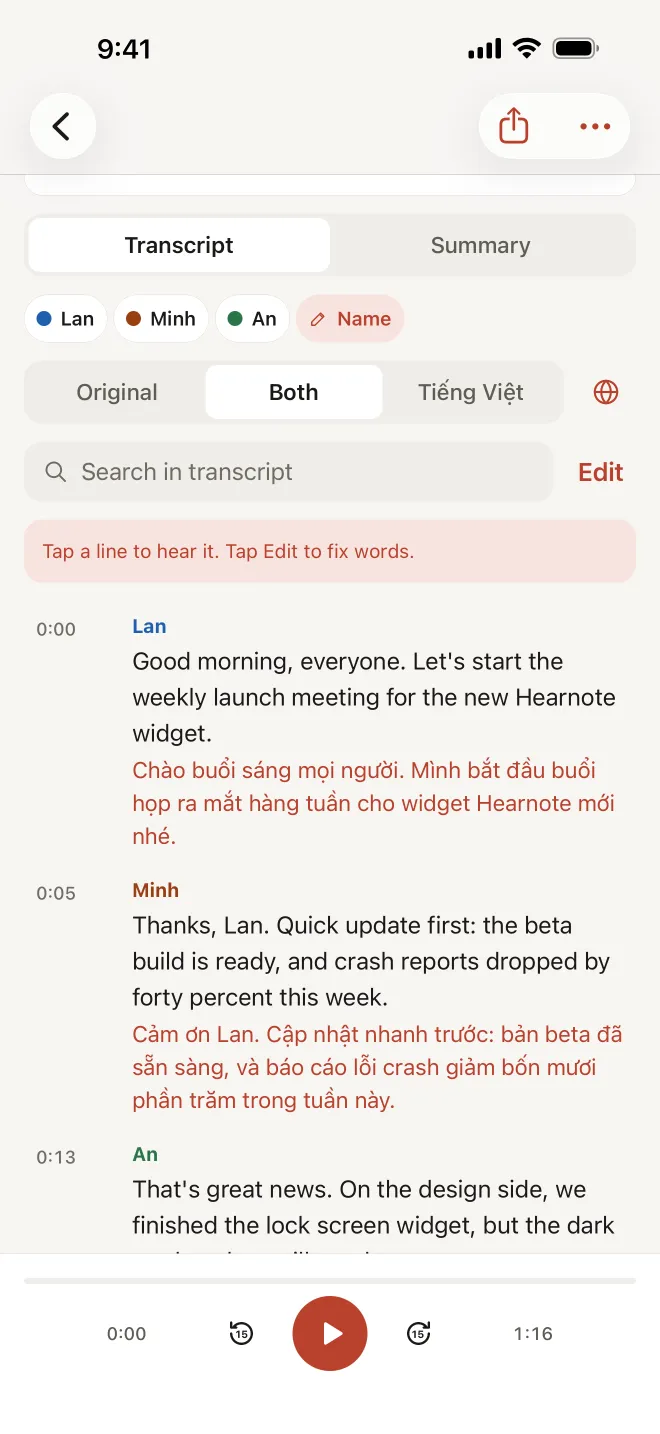
- 6Switch between Original, Both and the translated language. Both puts each translated line under the original, so you can compare them.
- 7Export. Choose “Export in” the translated language to share the translated text; Word and SRT files are Hearnote Pro features too.
What about the summary, and what do I need?
If the recording has a summary, it is translated too and appears under the original. Summaries need Apple Intelligence (an iPhone 15 Pro or later, with Apple Intelligence on and supporting the recording’s language). Transcription and translation of the transcript do not: they work on every iPhone that runs iOS 26.
Translating the summary is not a separate paid step: if you can translate the transcript, you can translate the summary that goes with it.
| Step | Built-in iPhone | Hearnote |
|---|---|---|
| Record | Voice Memos | Yes, Vietnamese or English, screen locked |
| Transcript with timestamps | Some languages in Voice Memos | Yes, on the device |
| Translate a saved recording | No, text only | Yes (Hearnote Pro) |
| Original next to translation | No | Yes, Both view (Hearnote Pro) |
| Works offline | After downloading languages | After downloading each language once |
| Leaves the iPhone | — | No |
Is machine translation accurate enough?
It is good for following the thread of a lecture or a meeting and weaker with jokes, slang, names and fixed expressions. Two habits help: correct the transcript before you translate, and keep the Both view open so you can see the sentence that was really said. For a contract, a medical or legal document, or anything official, ask someone who speaks both languages.
What is free and what needs Hearnote Pro?
On the free tier, Hearnote records, imports, transcribes up to 3 recordings and 60 minutes a week, lets you fix words and search inside a transcript, and exports TXT and Markdown. Translation, Word and SRT export are part of Hearnote Pro. The sample recording in the app has every Pro feature unlocked, so you can try the translation first.
Your recordings, transcripts and translations stay on your iPhone. The only download is the language model from Apple, once per language.
Frequently asked questions
- How do I translate a voice recording on iPhone?
- Turn the recording into text, then translate the text. Hearnote does both on the iPhone: it transcribes in Vietnamese or English, and Hearnote Pro translates the transcript between the two and shows the original beside the translation.
- Does the translation work offline?
- Yes, after the language is downloaded from Apple once. Translation then runs on the iPhone without a connection.
- Is my recording uploaded to translate it?
- No. Recording, transcription and translation happen on your iPhone, and Hearnote has no account. Only the language download comes from Apple.
- Can I translate between Vietnamese and English in both directions?
- Yes. You can translate a Vietnamese transcript into English and an English one into Vietnamese. The list also shows other languages your iPhone can translate.
- Do I need Apple Intelligence to translate?
- Not for the transcript. Summaries, and therefore translated summaries, need an Apple Intelligence iPhone. Transcription and translation of the transcript work without it.