How to see who said what in a voice recording on iPhone
November 2, 2026 · 6 min read
You recorded a meeting, an interview or a family discussion, and now you have one long wall of text. Which part did Lan say, and which part was the client? Without names on the lines, you can’t quote anyone, assign a task or tell who agreed to what.
This guide explains what an iPhone can and cannot do about speakers, a manual method that works with any recording, and how Hearnote tells the voices apart on the phone itself. It also says plainly where this goes wrong, because voice separation is never perfect.
Can an iPhone tell who is speaking in a recording?
Not by itself. The built-in Voice Memos app records and plays audio, and on some iOS versions and languages it can show a transcript. It does not label speakers: the text comes as one stream, with no “Speaker 1” or “Speaker 2”.
That is why the question is really two jobs. First, turn the audio into text with timestamps. Second, work out which voice belongs to each line. The second job is called speaker labelling (or diarization), and it needs a tool that compares voices, not just words.
How do I label speakers in a recording, step by step?
These steps work with any recording and any tools; the Hearnote version follows in the next section.
- 1Get a clean recording. Put the phone in the middle of the table, close to everyone, and ask people to avoid talking over each other. Overlapping voices are the hardest case for any tool. Tell the participants you are recording.
- 2Turn the audio into text with timestamps, so each sentence has a time you can jump to.
- 3Listen to the first minute and note how each voice sounds: who opens, who answers, who asks the questions. This gives you the names you will use.
- 4Tag each line with a speaker, either by hand (type the name before the line) or with a tool that separates voices.
- 5Replace “Speaker 1” and “Speaker 2” with real names, so the notes make sense later.
- 6Check a few lines against the audio, especially where two people spoke quickly or sound alike. Fix any line that is wrongly attributed before you share it.
- 7Keep the names with the text when you export, so “Lan: we ship on Friday” does not become an anonymous sentence.
How does Hearnote tell the speakers apart on the iPhone?
Hearnote is an iPhone recorder that transcribes on the device. Speaker labels are a Hearnote Pro feature. They run on your iPhone with models bundled in the app, so the audio is not sent anywhere, and there is no account.
- 1Record in Hearnote, or import an audio file from Files. Choose the language people will speak before you start: Vietnamese or English.
- 2Wait for the transcript. Speaker labels work on a finished transcript, so the recording needs to have text first.
- 3On the Transcript tab, tap Label speakers. A progress line shows “Finding who spoke…” with a percentage, and you can cancel.
- 4When it finishes, one chip per voice appears, such as Speaker 1 and Speaker 2, and the name of the speaker shows above the line each time the voice changes.
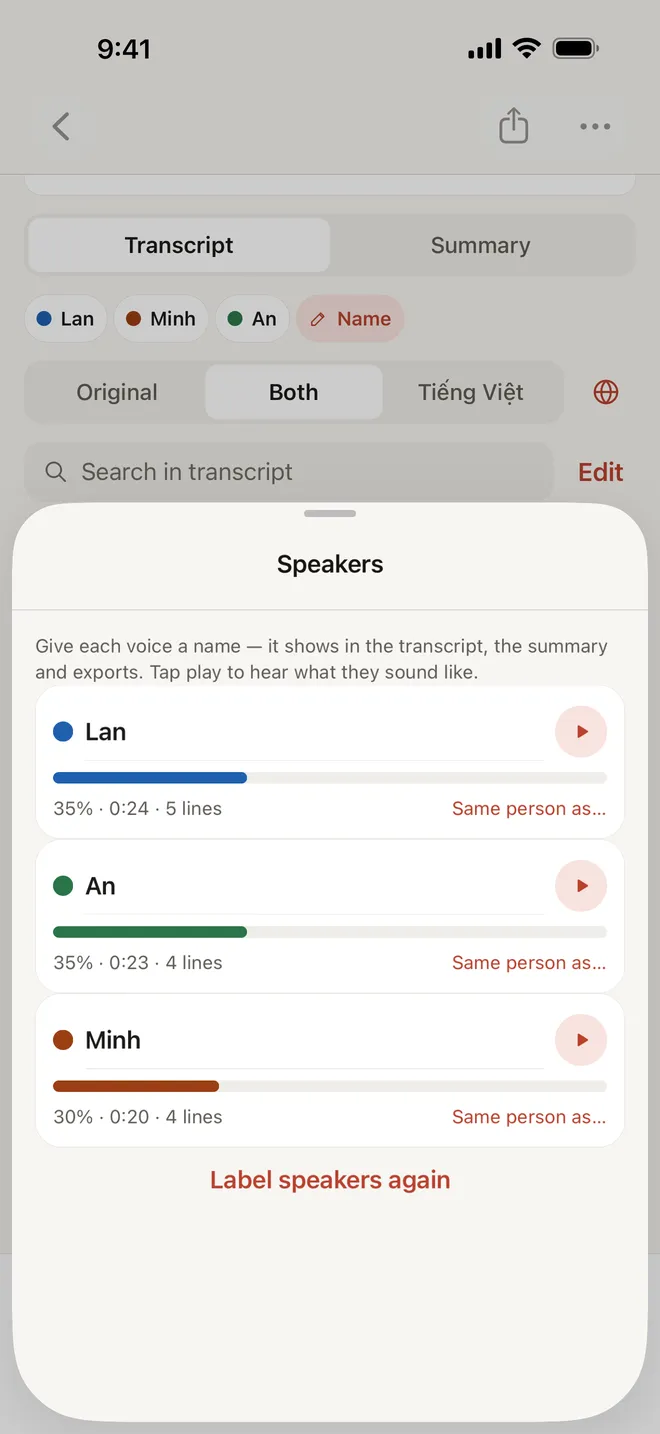
- 5Tap the chips (or Name) to open the Speakers screen. Type a name for each voice. Tap play next to a voice to hear what it sounds like, which helps you tell who is who.
- 6If one person was split into two voices, choose “Same person as…” on one of them and pick the other. Everything that voice said moves under the one name.
- 7Export. The names show in the transcript, in the summary (including who owns an action item) and in your exports as “Lan: …”.
What does talk time tell me?
For each voice, Hearnote shows the share of the recording, the time spoken and the number of lines. In a meeting this shows quickly whether one person did most of the talking. In an interview it shows whether the interviewee had room to speak.
It is a count of speaking time, nothing more. It does not say who was right or who made a decision; read the transcript for that.
When do speaker labels go wrong?
Separating voices is hard, and it is wise to expect mistakes. These situations make it harder:
- Two voices that sound alike can be merged into one speaker.
- One voice recorded at different distances can be split into two, for example when someone walks around the room.
- Short interjections such as “yes” or “okay”, and people talking at the same time, are easy to attribute to the wrong person.
- A recording with only one voice cannot be separated; Hearnote suggests checking that the recording has more than one voice if it fails.
The fixes are simple: merge a split voice with “Same person as…”, relabel with “Label speakers again” (the names you gave stay with their labels, but lines may be grouped differently), and check the important quotes against the audio before you rely on them. Hearnote does not publish an accuracy figure for this feature.
What is the difference between Voice Memos and Hearnote here?
The short version, for the specific job of knowing who said what:
| Step | Built-in iPhone | Hearnote |
|---|---|---|
| Record on the phone | Voice Memos | Yes, Vietnamese or English, screen locked |
| Transcript with timestamps | Some languages in Voice Memos | Yes, on the device |
| Separate the voices | No | Yes (Hearnote Pro) |
| Rename each voice | No | Yes (Hearnote Pro) |
| Share of talk time | No | Yes (Hearnote Pro) |
| Names kept in exports | — | Yes: TXT, Markdown, Word, SRT |
| Leaves the iPhone | — | No |
What is free, what needs Hearnote Pro, and what stays private?
On the free tier, Hearnote records, imports, transcribes up to 3 recordings and 60 minutes a week, lets you fix words and search inside a transcript, and exports TXT and Markdown. Speaker labels, Word and SRT export are part of Hearnote Pro. The sample recording in the app has every Pro feature unlocked, so you can try speaker labels on it first.
Recordings, transcripts and speaker names stay on your iPhone. Summaries and Ask Hearnote answers need an iPhone with Apple Intelligence; transcription and speaker labels do not. Before you record other people, check the rules where you live and tell the participants.
Frequently asked questions
- Can Voice Memos show who is speaking?
- No. Voice Memos records and plays audio and can show text for some languages, but it does not label speakers. You need a tool that separates the voices, or you add the names by hand.
- How do I label speakers in a Hearnote recording?
- Transcribe the recording, open the Transcript tab and tap Label speakers (Hearnote Pro). When it finishes, tap the speaker chips to name each voice. The names then appear in the transcript, the summary and your exports.
- Is my audio uploaded to find the speakers?
- No. Speaker labels run on your iPhone with models that come with the app, and Hearnote has no account. Your recording, transcript and names stay on the device.
- Why did Hearnote put one person under two names?
- Voice separation can split one voice in two, for instance when someone moves away from the microphone. Use “Same person as…” on one of the labels to merge them under a single name.
- Do I need Apple Intelligence to label speakers?
- No. Transcription and speaker labels work without it. Only summaries and Ask Hearnote answers need an iPhone with Apple Intelligence.