How to record an interview on iPhone and get a transcript
October 19, 2026 · 6 min read
Whether you are interviewing a candidate, a customer, a classmate for a project or a source for an article, you want to look at the person, not at your notebook. A recording lets you do that. The catch is afterwards: a 45-minute interview is a lot of audio, and nobody enjoys replaying it to find the one sentence they want to quote.
This guide covers both halves: how to get a clear recording on an iPhone, and how to turn it into a transcript you can search and check. The first steps use the apps already on your phone; the last sections show what Hearnote adds, and what stays free.
How do I get a clear interview recording on iPhone?
A transcript is only as good as the audio behind it. Two minutes of setup matter more than any app:
- Ask first, and say why: “I’d like to record this so I can quote you accurately. Is that okay?” Get a clear yes on the recording itself. Rules about recording people differ from place to place, so check the rules where you live and tell everyone taking part.
- Sit in a quiet room, away from fans, traffic and café music. Background noise is the main cause of wrong words in a transcript.
- Put the iPhone on a soft surface between you and the other person, about an arm’s length from whoever speaks, with the microphone end pointing towards them. Do not hold it in your hand.
- Turn on Do Not Disturb or a Focus mode, and check the battery and free storage before you start.
- Do a ten-second test: record, say a sentence, play it back. Fix the setup now, not after the interview.
- For a remote interview, use speakerphone or your computer’s speakers and place the iPhone near them. Only record a call if everyone has agreed.
Can I use Voice Memos for an interview?
Yes. Open Voice Memos, tap the red button and it records until you stop it, including with the screen locked. On recent versions of iOS, Voice Memos can also show a transcript for some languages; check whether yours offers one for the language of your interview.
What the built-in app gives you is a recording and, at best, raw text. It will not tell you who said what, and it will not organise the answers by topic. For a short chat that is enough. For a long interview, jot the time on paper when something important is said, so you can jump back to it later.
How do I turn the recording into a transcript I can use?
Whatever you record with, the path from audio to quotable text is the same:
- 1Record the whole conversation, including the first minute and the last. People often say the most useful thing as they are packing up.
- 2Get the text. Use a built-in transcript if your iOS version supports your language, or an app that transcribes, or listen back at 1.5× speed and type the important parts.
- 3Mark who is speaking. Even a plain “Q:” and “A:” before each turn saves you from attributing a sentence to the wrong person.
- 4Read the transcript once, with a highlighter or a copy of the text, and mark only three kinds of passages: quotes you may use, facts you must check, and answers to your main questions.
- 5Fix names, numbers and technical terms. Transcripts are most often wrong on exactly these.
- 6Listen to the audio around every quote before you publish or pass it on. The transcript tells you where; the recording confirms what was really said.
- 7Keep the recording and the text together, with the person’s name, the date and the topic in the file name, so you can find them again.
How does Hearnote help with interviews?
Hearnote is an iPhone recorder that transcribes on the device. Audio, transcript and notes stay on your iPhone: no account, nothing uploaded.
- Record in Vietnamese or English. Recording keeps going in the background with the screen locked; an incoming call pauses it, and you tap Resume afterwards.
- Already have the audio? Import a file from the Files app instead of recording again.
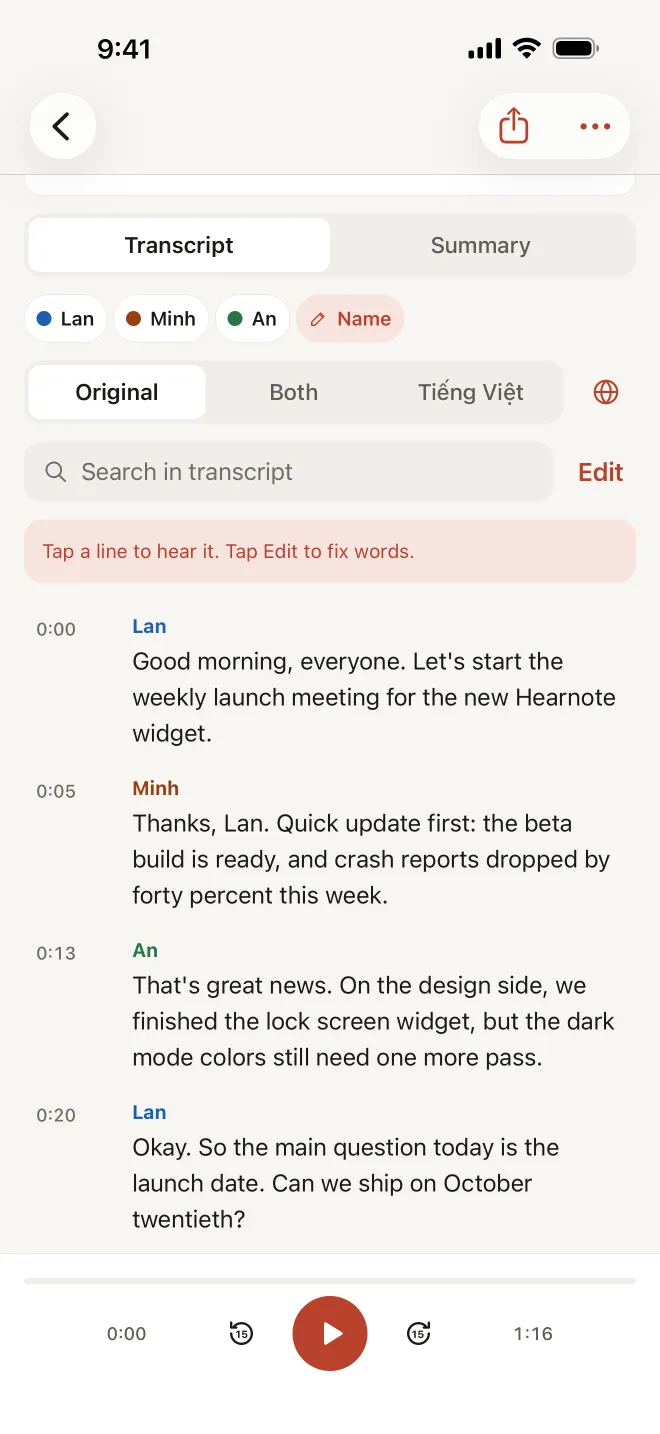
- Transcription runs on the iPhone (iOS 26; the language model downloads from Apple once). Every line has a timestamp, and tapping a line plays the audio from there, which makes checking a quote quick.
- Fix mistakes in place: hold a word to correct its spelling, and Hearnote can remember the spelling for next time. Search inside the recording to jump to a name or a number.
- Speaker labels (Hearnote Pro) work out who spoke when, on the device. You rename “Speaker 1” to the guest’s name and it appears in the transcript and in exports as “Name: …”. Voices are named per recording, and results can be imperfect when two people sound alike, so glance through before you rely on them.
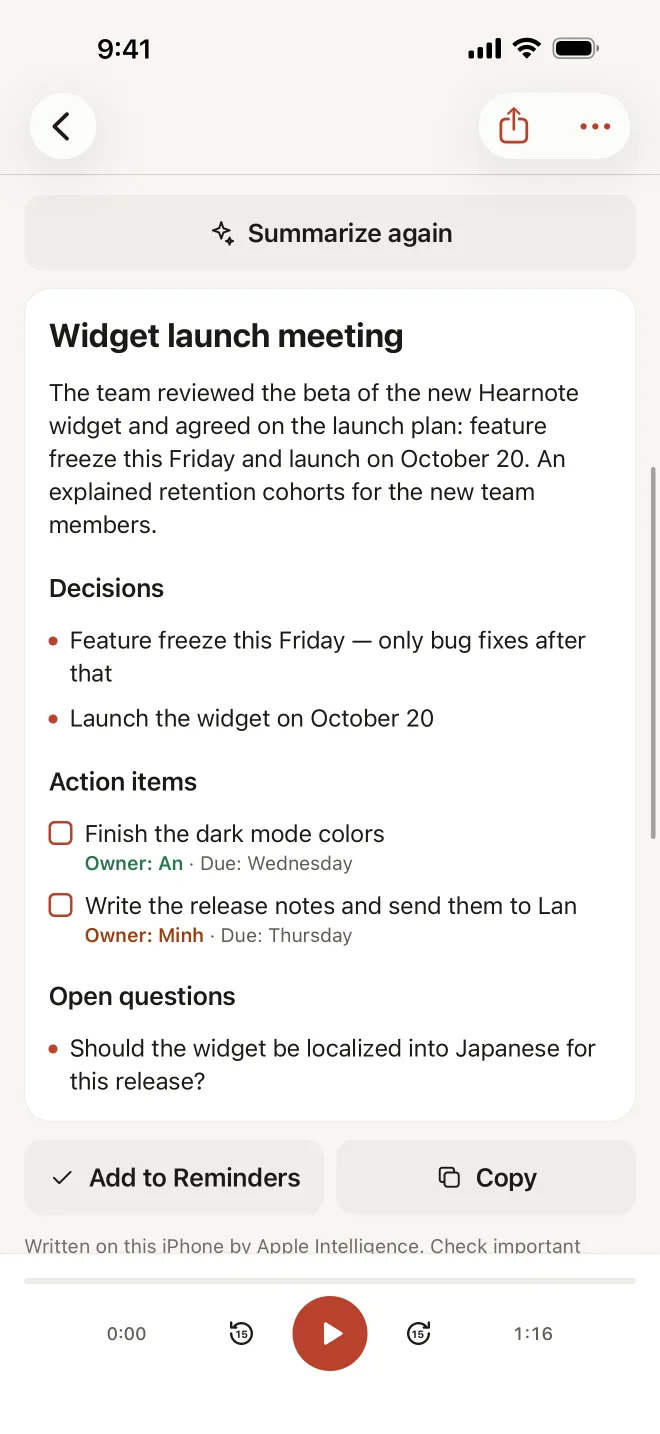
- The Interview template (Hearnote Pro) writes organised notes from the transcript. It needs Apple Intelligence, which means an iPhone 15 Pro or later with Apple Intelligence turned on. Without it, you still get the full transcript.
- Export as TXT or Markdown on the free tier; Word (.docx) and subtitle (.srt) files come with Hearnote Pro.
What is free, and what needs Hearnote Pro?
On the free tier, Hearnote transcribes 3 recordings and up to 60 minutes a week, lets you edit and search inside each transcript, and writes Quick-note summaries. That is enough to record a short interview and get the text.
Speaker labels, the Interview template, Word and SRT export, searching inside every transcript at once and Ask Hearnote (ask a question and get an answer with the timestamps it came from) are part of Hearnote Pro. The sample recording in the app has every Pro feature unlocked, so you can see how they work first.
| Task | Free | Hearnote Pro |
|---|---|---|
| Record, import, play back | Yes | Yes |
| Transcript with timestamps, fix words, search inside | Yes | Yes |
| Export TXT or Markdown | Yes | Yes |
| Speaker labels and renaming | — | Yes |
| Interview template notes (needs Apple Intelligence) | — | Yes |
| Word and SRT export | — | Yes |
How do I quote someone fairly?
A tidy transcript can make you overconfident. Before you quote, listen to the sentence, keep enough of what came before and after to preserve the meaning, and send the quote back to the person if they asked to approve it. A summary written by an on-device model is a fast route to the right moment, not a replacement for the person’s own words.
Frequently asked questions
- What is the best way to record an interview on an iPhone?
- Ask for consent, record in a quiet room with the phone on a soft surface about an arm’s length from the speaker, run a ten-second test, and record the whole conversation. Voice Memos works, and so does a recorder app.
- Can the iPhone transcribe an interview by itself?
- On recent iOS versions, Voice Memos can show a transcript for some languages. An app such as Hearnote also transcribes on the device in Vietnamese and English and adds timestamps you can tap to hear the audio.
- Is my interview uploaded anywhere?
- Not with Hearnote. Recording, transcription and notes happen on your iPhone, and there is no account. Only a language model download from Apple is needed once for transcription.
- Can Hearnote tell which person is speaking?
- Yes, with Hearnote Pro. It labels speakers on the device and you rename them. Check the labels, especially when two voices are similar.
- Do I need permission to record an interview?
- Rules differ by place, so check the rules where you live and tell participants before you record. This guide is general information, not legal advice.