Transcribe a voice memo to text on iPhone
November 16, 2026 · 6 min read
You have a voice memo from a lecture, a call with a client or a family dinner, and you need it as text. Maybe it is forty minutes long, maybe it was sent to you as a file. Listening and typing takes at least as long as the recording, and many web transcription tools want you to upload the audio first, which is not something you do with a private conversation.
This guide shows how to transcribe a voice memo to text on an iPhone: what the built-in apps can do, how to bring any audio or video file into Hearnote, and how to check the result so you can trust it. The transcription runs on the phone.
Can Voice Memos turn a recording into text by itself?
Possibly, but it depends on your iPhone, your iOS version and the language. Recent versions of iOS can show a transcript for a Voice Memos recording in some languages. Open the recording, tap the ••• button and look for a transcript option. If it is there for your language, that is the quickest route for a short memo, and you pay nothing.
If the option is missing, or your recording is in Vietnamese and your phone does not list it, you need another route. Keyboard dictation will not help: it types what you say into the microphone right now, and cannot take a file that already exists.
A recorder that transcribes files covers the gap. Hearnote is an iPhone recorder that does this with Apple’s on-device speech recognizer on iOS 26, in Vietnamese and English.
How do I transcribe an audio file on iPhone, step by step?
These steps use Hearnote. Importing and transcribing do not need Hearnote Pro; the free version has weekly limits, covered below.
- 1Choose the language first. In Hearnote, open Settings and set Default language to the language spoken in the file. An imported file is transcribed in that language. If you skip this, you can still change it afterwards.
- 2Get the file where Hearnote can reach it. For a Voice Memo, open it, tap the ••• button and choose Share, then pick Hearnote if it appears in the app row. If it does not, choose Save to Files instead. A file you already have in the Files app needs nothing more.
- 3In Hearnote, tap the More (•••) button at the top of the library and choose Import audio or video. On an empty library there is also an “Or import an audio or video file” link.
- 4Pick the file. Hearnote copies it into the app and converts it to one format; a video keeps only its sound. The title starts as the file name, and you can rename it.
- 5Wait for the transcript. With “Transcribe automatically” on (the default), it starts right away, shows progress and saves it as it goes, so a long file that gets interrupted continues from the last saved part. The first time you use a language, the iPhone downloads its speech model from Apple.
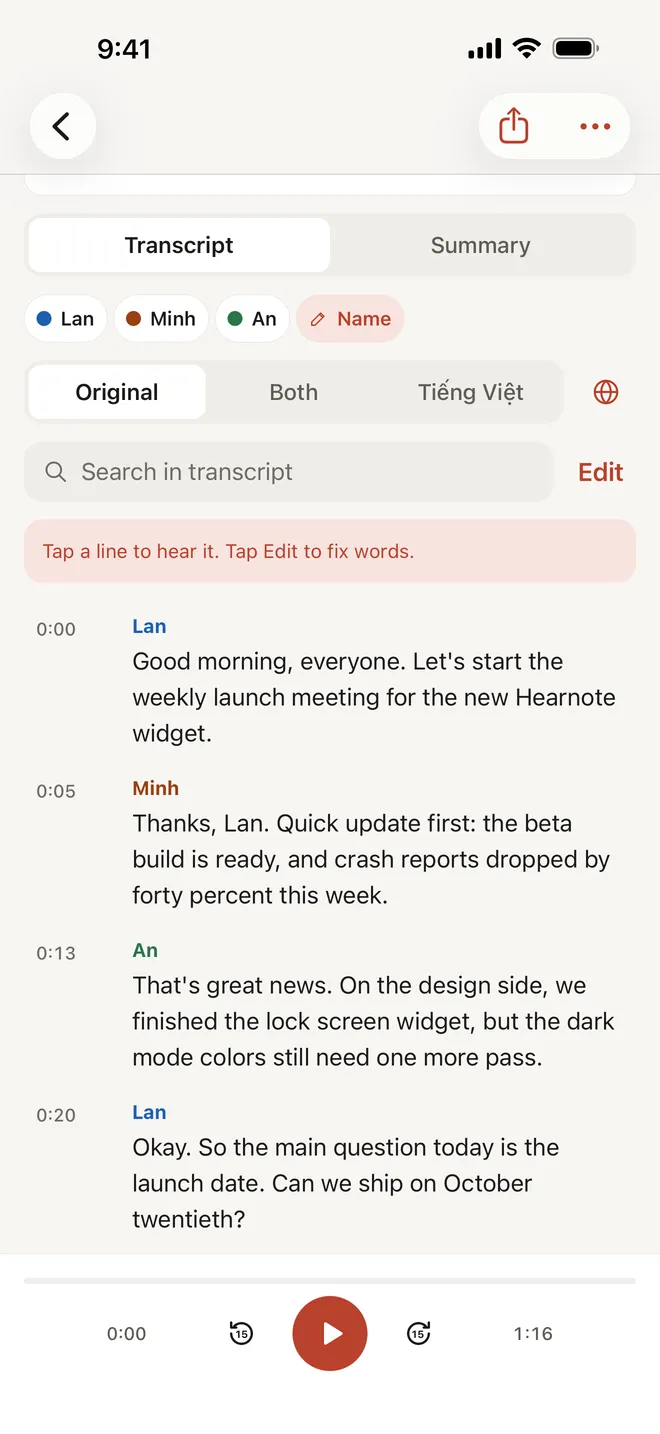
- 6Open the Transcript tab. Every line has a timestamp. Tap a line to hear that moment, and hold a word to fix its spelling.
- 7If the text looks like gibberish, or a banner asks “Spoke Vietnamese?” (or English), the file was transcribed in the wrong language. Use the language chip or the banner’s “Transcribe again” action to redo it in the right one. This replaces the current transcript and your edits, so do it before you correct words.
- 8Export when you are done. TXT and Markdown are free; Word (.docx) and .srt subtitles are part of Hearnote Pro.
Which files can I import: Voice Memos, other apps, video?
Hearnote opens audio and video files. The usual ones work: m4a from Voice Memos, mp3, wav and aiff, and video such as an mp4, from which it keeps only the sound. A file with no sound track is refused with a message.
Audio that another app gave you, such as a voice message or a saved call, goes the same way: save it to Files from that app’s share menu, then import it. Not every app offers a way to save its audio; that depends on the app, not on Hearnote.
Importing does not change the original. Hearnote keeps its own converted copy, so the memo stays where it was.
How do I get a transcript I can trust?
An old recording cannot be re-recorded, so check what you have. The speech recognizer works on the sound; it cannot recover words that were never clear.
- Clean, close, one voice at a time comes out best. Noise, a distant phone and people talking over each other cause mistakes.
- Check names, numbers and dates against the audio before you quote or send anything. Tap the line to hear it.
- Fix a wrong name once and Hearnote can remember it for later transcripts; our guide on fixing wrong names shows how.
- Hearnote publishes no accuracy figure, so test it on a short stretch of your own file first.
- A recording is transcribed in one language at a time. A file that switches languages needs one language chosen, and the other may come out wrong.
What can I do with the transcript afterwards?
Search inside it, copy passages, or export it. The free version searches inside one recording and exports TXT and Markdown.
Hearnote Pro adds the things that make a transcript useful at work: summaries with templates such as Meeting or Lecture, speaker labels, Word and SRT export, and search across all your recordings. Summaries and Ask Hearnote answers need an iPhone with Apple Intelligence; the transcript itself does not. The sample recording in the app has every Pro feature unlocked, so you can try them before deciding.
Does the audio leave my iPhone, and what does the free version include?
No. Hearnote has no account and no server that receives your audio or text. Imported files, transcripts and notes stay in the app’s storage on your iPhone, and leave only when you export or share them. Only the speech model comes from Apple, once per language.
The free version transcribes up to 3 recordings and 60 minutes a week; a transcription that has started always finishes. Hearnote Pro removes that limit. If the audio contains other people, check the rules where you live about recording and sharing, and tell the people involved.
Frequently asked questions
- How do I transcribe a voice memo on iPhone?
- Check whether Voice Memos shows a transcript for your language. If not, share the memo to Hearnote or save it to Files, then in Hearnote choose More, Import audio or video and pick it. The transcript is made on the iPhone.
- Can I transcribe an audio file without uploading it?
- Yes. Hearnote transcribes imported files with Apple’s speech recognition on the device, and the audio is never uploaded. The first use of a language downloads its speech model from Apple.
- Does importing work with video files?
- Yes. Hearnote takes the sound from a video and transcribes that. A file without any sound cannot be imported.
- Why is my imported file transcribed in the wrong language?
- Imports use your Default language in Settings. Change it there, or open the recording and transcribe again in the right language from the language chip. The new transcript replaces the old one.
- Is it free?
- Importing and transcribing are in the free version, up to 3 recordings and 60 minutes a week. Summaries by template, speaker labels, Word and SRT export and unlimited transcription are part of Hearnote Pro.