Start a voice recording from the iPhone lock screen
November 23, 2026 · 6 min read
The sentence you most want to catch is usually the one said while you are still unlocking the phone, opening an app and looking for the red button. By the time you are ready, the speaker has moved on. If you record meetings, lectures or interviews, the number of taps before the recording starts matters more than it should.
This guide shows every quick way to start a voice recording on an iPhone: what the built-in options are, and how to set up one-tap start in Hearnote with a Lock Screen control, a widget, the Action Button or your voice. It also says plainly what these shortcuts cannot do.
What are the quick ways to start recording on an iPhone?
There are five, and which ones you can use depends on your iPhone and iOS version:
- A Home Screen widget: one tap on the icon from the Home Screen.
- A Lock Screen widget or control: one tap from the Lock Screen (the phone may ask you to unlock first).
- A Control Center control: swipe down, tap. Controls need iOS 18 or later.
- The Action Button: a physical button, found on iPhone 15 Pro, iPhone 15 Pro Max and the iPhone 16 and later models. Other iPhones do not have it.
- Siri, Spotlight or Shortcuts: say or type a phrase.
The built-in Voice Memos app is one of the choices for the Action Button (Settings, Action Button, Voice Memo), and you can look for a Voice Memos control in the Controls gallery. That is a fine route if all you need is an audio file. The steps below are for Hearnote, which also writes the transcript on the iPhone.
How do I start a Hearnote recording in one tap, step by step?
Set up the entry point that fits how you hold your phone. You do not need all of them.
- 1Home Screen widget: touch and hold an empty spot on the Home Screen, tap the + button, search for Hearnote and add the small Record widget. A tap on it opens Hearnote and starts the recorder.
- 2Lock Screen widget: touch and hold the Lock Screen, tap Customize, choose Lock Screen, tap Add Widgets and pick Hearnote. The round Record widget starts a recording; the rectangular Last recording widget shows your latest note and has a microphone button.
- 3Lock Screen control or Control Center (iOS 18 and later): on the Lock Screen, tap Customize and replace one of the two bottom buttons by tapping its minus and then the plus, and choose Hearnote’s Record control. For Control Center, swipe down, touch and hold an empty area, tap Add a Control and pick Hearnote.
- 4Action Button (iPhone 15 Pro and later): open Settings, then Action Button, swipe to Controls and pick Hearnote’s Record control. You can also choose Shortcut and pick “Start a Hearnote”. Press and hold the button and recording begins.
- 5Siri: say “Start a Hearnote”, “Record with Hearnote” or “New Hearnote recording”. These phrases work in English, and the Vietnamese ones are “Ghi âm bằng Hearnote”, “Ghi âm với Hearnote” and “Bản ghi Hearnote mới”. You can also run the same action from Spotlight or the Shortcuts app.
- 6Test it once while you are calm. The first time, Hearnote asks which language you will speak and for microphone access; answer these now, not in the middle of a meeting.
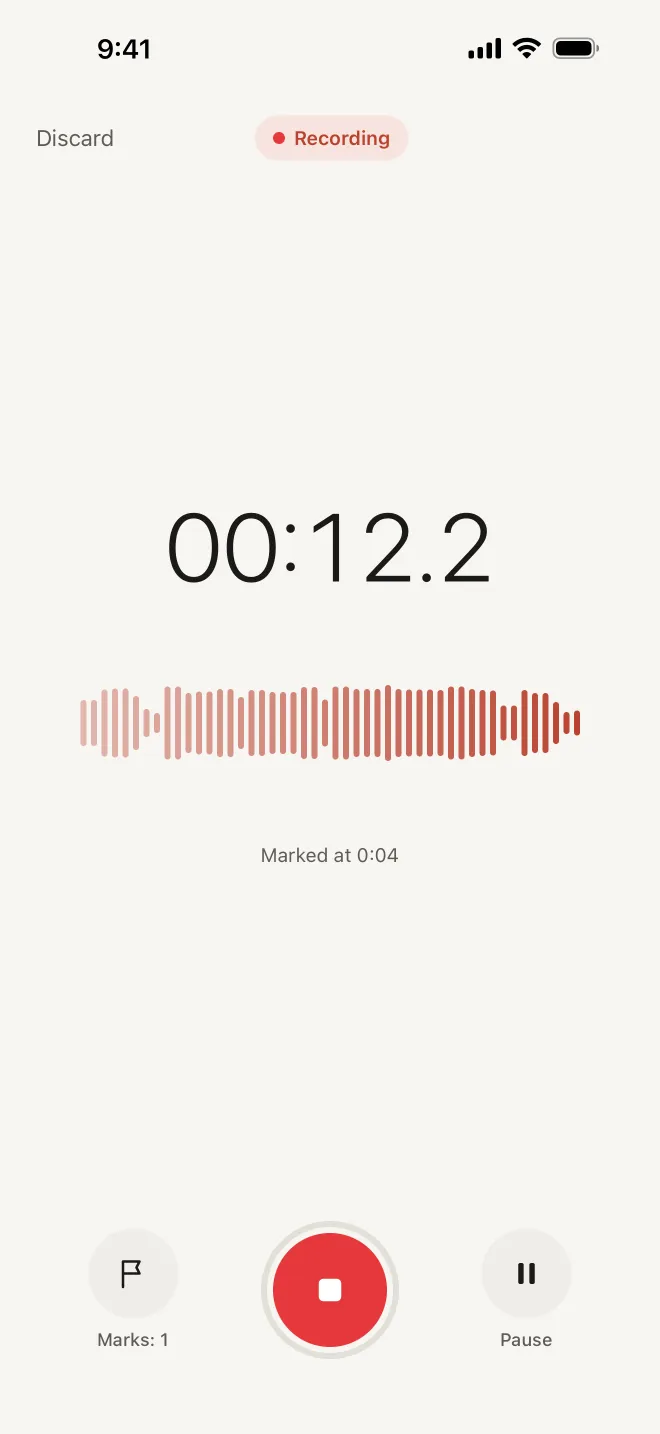
Does recording start while the phone is locked?
Not entirely, and it is better to know this before you depend on it. Every Hearnote shortcut brings the app to the front and then starts the recorder; iOS does not let a recorder app start a recording from fully in the background. If your phone is locked, it may ask for Face ID or your passcode first, and then Hearnote opens.
Once the recording has started you can lock the screen or switch to another app, and it keeps recording; the iPhone shows its orange microphone indicator while it does. If a phone call comes in, the recording pauses and waits for you to tap Resume.
Hearnote also checks two things when it starts: that it has microphone permission and that there is enough free storage. If one of them fails you see a message instead of a silent failure, which is another reason to try the shortcut once in advance.
Which shortcut should I use?
A quick comparison of the ways above, from the point of view of someone about to start a meeting. If your iPhone has an Action Button, it is the fastest of the five; if not, a Lock Screen control comes next.
| Entry point | Needs | Best for |
|---|---|---|
| Action Button | iPhone 15 Pro or later | Starting with the phone still in your pocket or on the table |
| Lock Screen control | iOS 18 or later | Starting from a locked phone |
| Control Center | iOS 18 or later | Starting from inside another app |
| Home Screen widget | Any supported iPhone | Phones you unlock anyway |
| Siri phrase | Siri turned on | Hands busy, or the phone is across the room |
What about the “Last recording” widget and my privacy?
The Last recording widget shows the title of your newest recording and one line of its summary, with a microphone button to start a new one. Hearnote marks that text as private, so iOS hides it while the phone is locked. The widget reads a small snapshot kept on your iPhone; nothing is sent to a server, because Hearnote has no account and does not upload recordings or transcripts.
The one-line summary appears only if a summary exists, and summaries need an iPhone with Apple Intelligence. The recording and its transcript work without it.
What should I do after the recording starts?
If it is a meeting, tell people you are recording and why. Rules about recording people differ from place to place, so check the rules where you live and tell the participants.
While recording, tap Mark when something important is said, such as a decision or a deadline, and the moment is saved with the recording. When you stop, Hearnote transcribes on the iPhone, with timestamps you can tap to hear a line again. Our guides on turning a meeting recording into minutes and on searching inside your recordings pick up from there.
Frequently asked questions
- How do I start a voice recording from the iPhone lock screen?
- Add a recorder widget or control to the Lock Screen: touch and hold the Lock Screen, tap Customize and add Hearnote’s Record widget or control (the control needs iOS 18 or later). Tapping it opens Hearnote and starts recording; the phone may ask you to unlock first.
- Can I record with the Action Button on iPhone?
- Yes, on iPhones that have an Action Button (iPhone 15 Pro, 15 Pro Max and the iPhone 16 and later). In Settings, Action Button, choose Controls and pick Hearnote’s Record control, or choose Shortcut and pick “Start a Hearnote”. Press and hold to start.
- Can Siri start a recording in Hearnote?
- Yes. Say “Start a Hearnote”, “Record with Hearnote” or “New Hearnote recording”. Vietnamese phrases are also available, for example “Ghi âm bằng Hearnote”.
- Does the recording start if my iPhone is locked?
- The shortcut opens Hearnote and starts the recorder, so a locked phone may ask for Face ID or a passcode first. iOS does not let a recorder app start recording completely in the background. After it has started, locking the screen does not stop it.
- Does a shortcut upload anything?
- No. The shortcuts only open the app and start the recorder. Hearnote has no account, and recordings and transcripts stay on your iPhone unless you export or share them.